
Table of Contents
- What Is GitHub Copilot and How Does It Work?
- Integrating GitHub Copilot with VS Code
- How to Use GitHub Copilot: A Step-by-Step Guide
- Copilot Chat: From Code Assistant to AI Teammate
- Communicate Naturally: Explain, Refactor, and Debug Code
- Learning and Personalization
- Security, Privacy, and Code Ownership
- Pricing Plans and Student Access
- Best Practices and Use Cases
- Conclusion: Transform the Way You Code
Share
Over the past few years, artificial intelligence has reshaped nearly every aspect of the software development workflow. From automated testing to smart debugging and refactoring tools, AI is no longer a futuristic concept. It’s an everyday assistant for developers. At the center of this transformation stands GitHub Copilot, a powerful AI coding companion built to help you write better code, faster.
Unlike traditional autocomplete tools, GitHub Copilot understands the context of your code. It analyzes the functions, variables, and comments you’ve written to generate meaningful suggestions, sometimes completing entire methods or even predicting the next logical step in your project. This allows developers to move seamlessly from idea to implementation, without constantly searching documentation or examples.
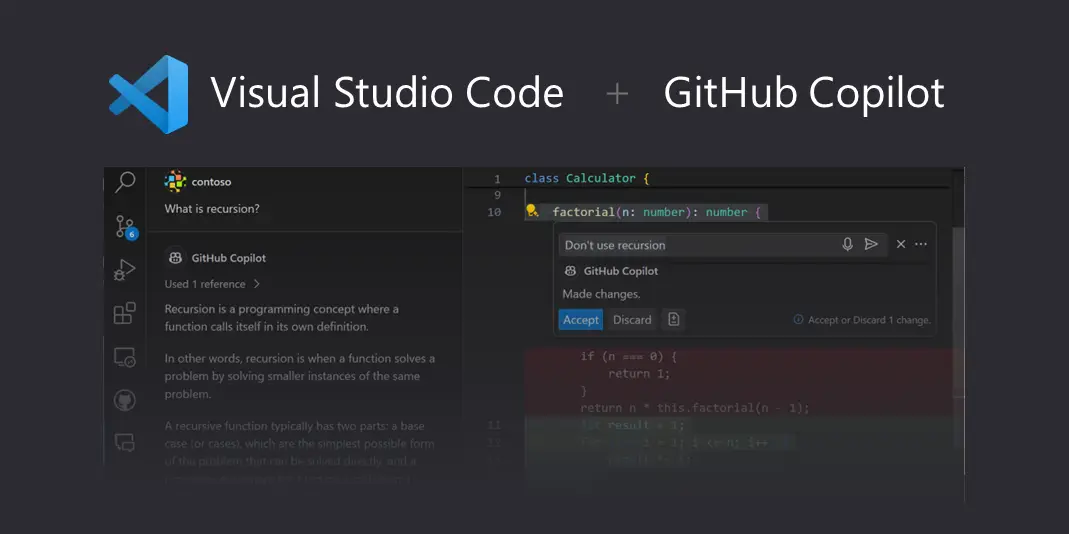
The experience becomes even more dynamic inside Visual Studio Code (VS Code), one of the world’s most popular development environments. Integrated directly into the editor, Copilot in VS Code provides real-time, intelligent code suggestions as you type, powered by deep learning models trained on billions of lines of code. The result is a natural, fluid collaboration between human creativity and machine intelligence.
As AI continues to advance, we’re entering a new era of AI-assisted software development, where tools like Copilot are becoming essential components of a developer’s daily toolkit. They don’t just accelerate productivity; they expand what’s possible.
What Is GitHub Copilot and How Does It Work?
GitHub Copilot is more than just a code autocomplete tool. It’s an AI-powered coding assistant built to help developers write code faster, smarter, and more efficiently. At its core, Copilot leverages OpenAI’s Codex model, a sophisticated machine learning system trained on billions of lines of code from public repositories. This allows it to understand programming languages, libraries, frameworks, and even coding patterns.
Unlike traditional autocomplete, Copilot doesn’t just suggest the next keyword or variable name. It analyzes the context of your code, including function definitions, comments, and surrounding lines, to predict what you might want to write next. Whether you’re implementing a simple function, generating boilerplate code, or creating complex algorithms, Copilot adapts to your coding style and the specific requirements of your project.
Some of the key capabilities of GitHub Copilot include:
Code Completion
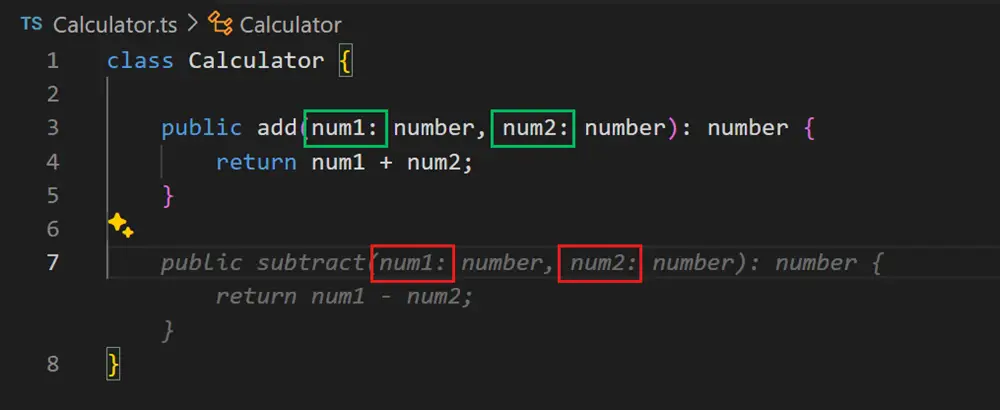
GitHub Copilot’s code completion goes far beyond traditional autocomplete features. Rather than simply suggesting the next keyword or symbol, Copilot understands the context of your entire code file, including variable names, function definitions, comments, and even prior coding patterns. This allows it to offer suggestions that are contextually accurate and highly relevant to the task at hand. By anticipating what a developer intends to do next, Copilot reduces repetitive coding and accelerates workflow, making it especially valuable in large projects or when working with unfamiliar APIs. Over time, it can even adapt to the specific style and structure preferences of a developer or team, providing a personalized coding experience.
Documentation Generation
One of Copilot’s standout features is its ability to automatically produce documentation and explanations for your code. This includes generating docstrings, inline comments, and high-level descriptions that improve code readability and maintainability. Copilot analyzes the purpose and behavior of your functions and modules, then creates explanations in natural language that can be understood by both developers and non-technical stakeholders. This is particularly useful in collaborative projects where multiple developers interact with the same codebase, or in projects that require compliance with documentation standards. By reducing the time spent manually writing documentation, Copilot allows developers to focus on more complex problem-solving tasks.
Test Writing
GitHub Copilot can significantly streamline the process of creating and maintaining tests for your software. It understands the logic and structure of your code and can suggest comprehensive test scenarios, including edge cases, expected behaviors, and potential error conditions. This capability enhances software quality by promoting test-driven development practices and ensuring that code is thoroughly validated. For teams, it also helps maintain consistency across test cases and reduces the overhead of manually writing repetitive test boilerplate. In essence, Copilot acts as a proactive testing assistant, helping developers catch potential issues early and maintain robust, reliable codebases.
Context Awareness and Learning
Beyond individual features, one of the most powerful aspects of GitHub Copilot is its ability to learn from context and improve over time. It observes your coding patterns, the structure of your projects, and your naming conventions to provide suggestions that are increasingly relevant and tailored to your workflow. This contextual intelligence allows Copilot to feel like a collaborative partner rather than a static tool, helping you write more coherent and consistent code while reducing mental overhead.
Integrating GitHub Copilot with VS Code
Getting started with GitHub Copilot in Visual Studio Code is designed to be straightforward and intuitive, even for developers who are new to AI-assisted coding. Below are the main steps broken down into clear subheadings and actionable items.
Installing the GitHub Copilot Extension
The first step is to install the GitHub Copilot extension from the VS Code Marketplace. This extension acts as the bridge between your local editor and the AI model, enabling real-time code suggestions directly within your coding environment.
How to install
- Open VS Code and navigate to the Extensions Marketplace.
- Search for “GitHub Copilot”.
- Click “Install”.
- Once installed, VS Code will automatically integrate Copilot into your editor.
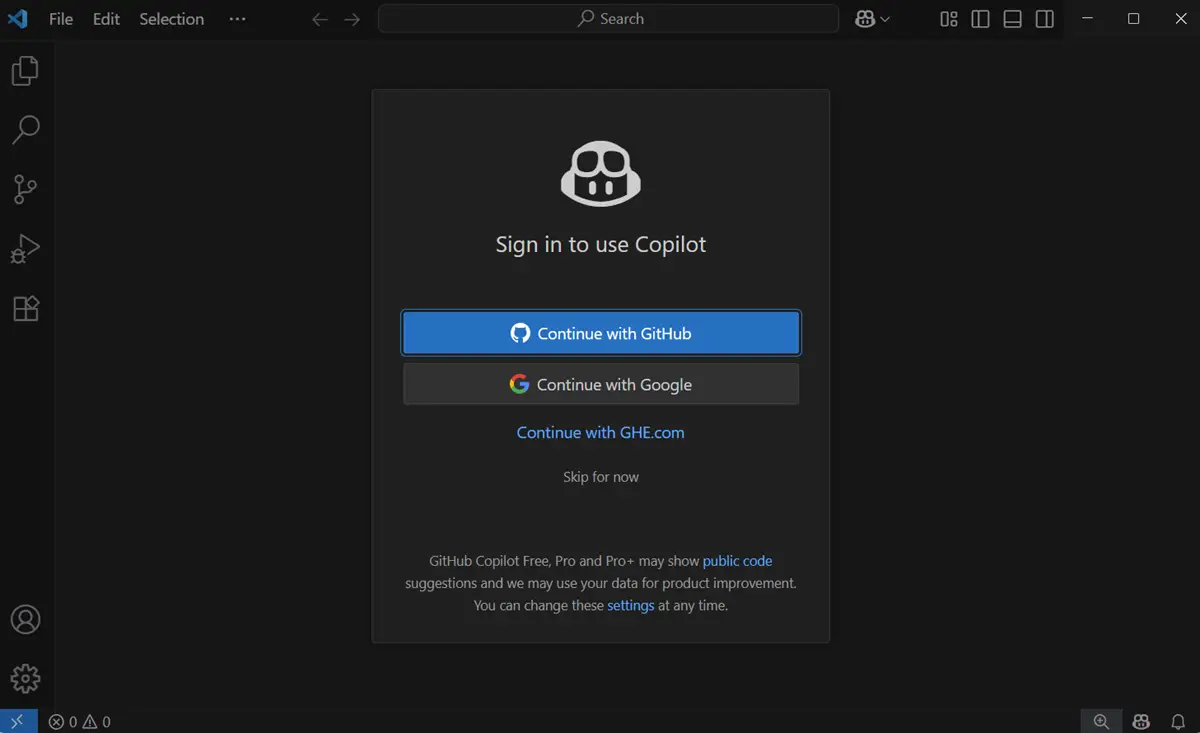
Signing in with Your GitHub Account
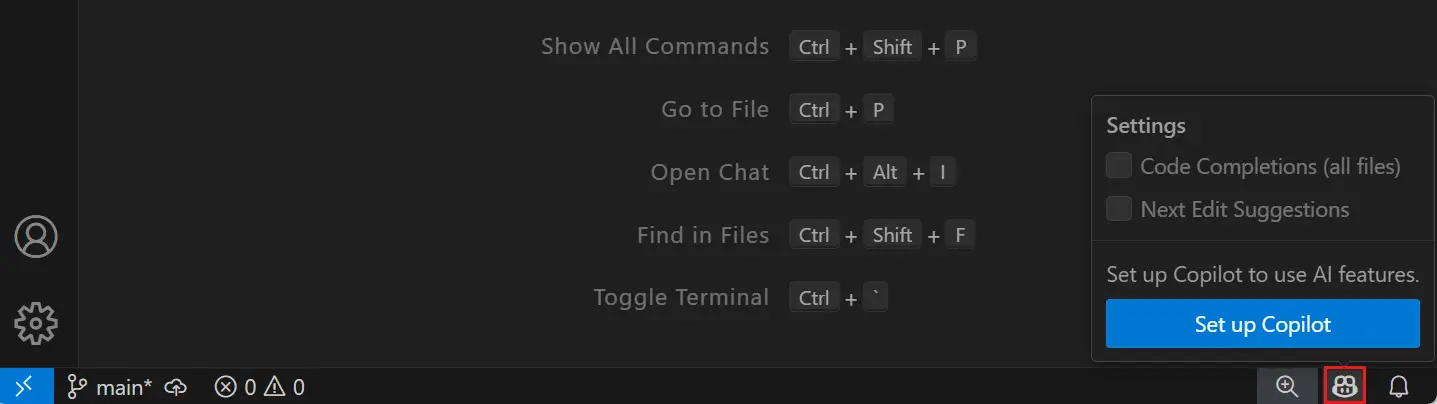
After installing the extension, you need to sign in to your GitHub account. Copilot requires an active GitHub account to verify licensing and manage subscription access.
Key points
- Use your personal GitHub account or a verified student license if eligible.
- Organizations can use enterprise plans for team-wide access.
- After signing in, Copilot will confirm your license and start providing intelligent suggestions.
Initial Setup and Configuration
To ensure Copilot works smoothly, it’s important to explore initial settings that optimize its behavior.
Recommended configurations
- Inline completions: Enable inline suggestions for seamless coding.
- Alternative suggestions: Adjust the number of alternative completions Copilot presents.
- Copilot Chat: Toggle conversational AI support for contextual coding help.
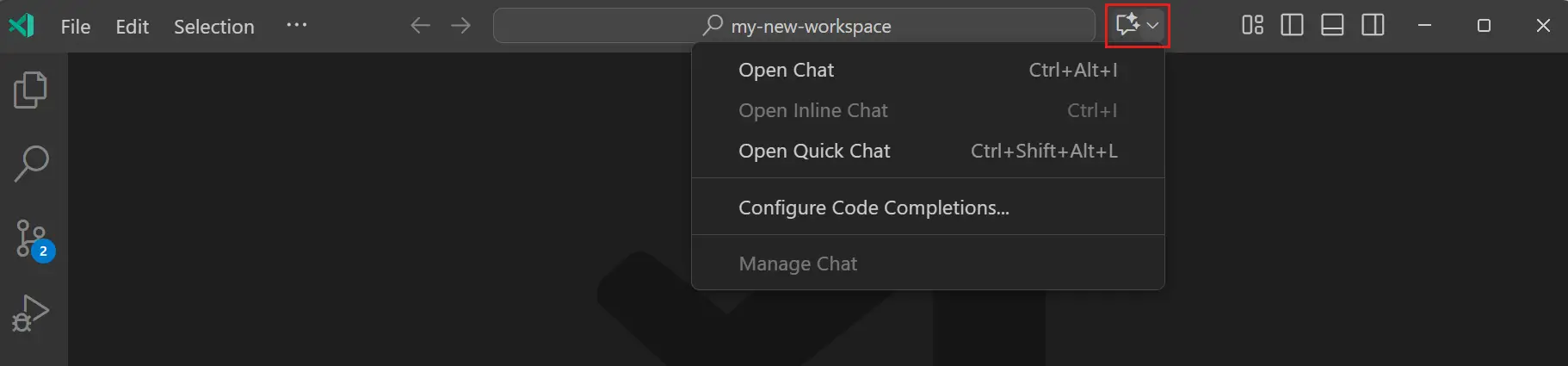
- Suggestion frequency and style: Fine-tune how often Copilot proposes completions and in what style.
Optimizing these settings ensures that Copilot aligns with your coding habits, reduces unnecessary interruptions, and maximizes productivity.
Start Coding with Copilot
Once installed, signed in, and configured, VS Code transforms into an AI-powered coding partner. Copilot assists with:
- Routine boilerplate code.
- Documentation and comments.
- Test writing and validation.
- Complex algorithm suggestions.
With these steps complete, you can leverage the full power of GitHub Copilot directly in your familiar development environment.
How to Use GitHub Copilot: A Step-by-Step Guide
GitHub Copilot is designed to seamlessly integrate into your coding workflow in VS Code. Once installed and configured, it acts as a proactive coding assistant, providing intelligent suggestions, generating documentation, and even creating tests. Using Copilot effectively requires understanding not just the basic steps, but also how to interact with its suggestions, leverage multiple options, and optimize its behavior for your coding style. The following guide breaks down these processes in detail.
Start Coding
Once the Copilot extension is active, it immediately begins analyzing your code context in real-time. This goes far beyond simple autocomplete: Copilot reads variable names, function definitions, comments, and even patterns from previous files in your project. It uses this context to anticipate the next logical step in your workflow.
This contextual awareness allows developers to:
- Quickly fill repetitive code blocks without thinking about syntax.
- Explore new approaches by seeing AI-suggested alternatives.
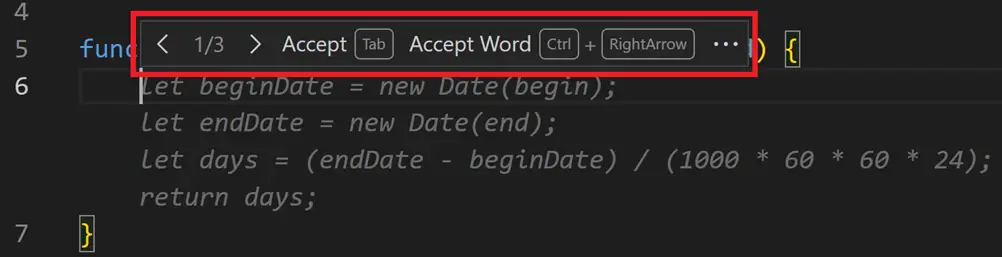
- Focus on higher-level problem solving instead of boilerplate tasks.
Best Practices
- Write clear comments describing your intended function or block of code; Copilot often uses these comments to generate highly relevant suggestions.
- Break complex tasks into smaller steps; Copilot performs better when the context is structured and specific.
Accept Suggestions
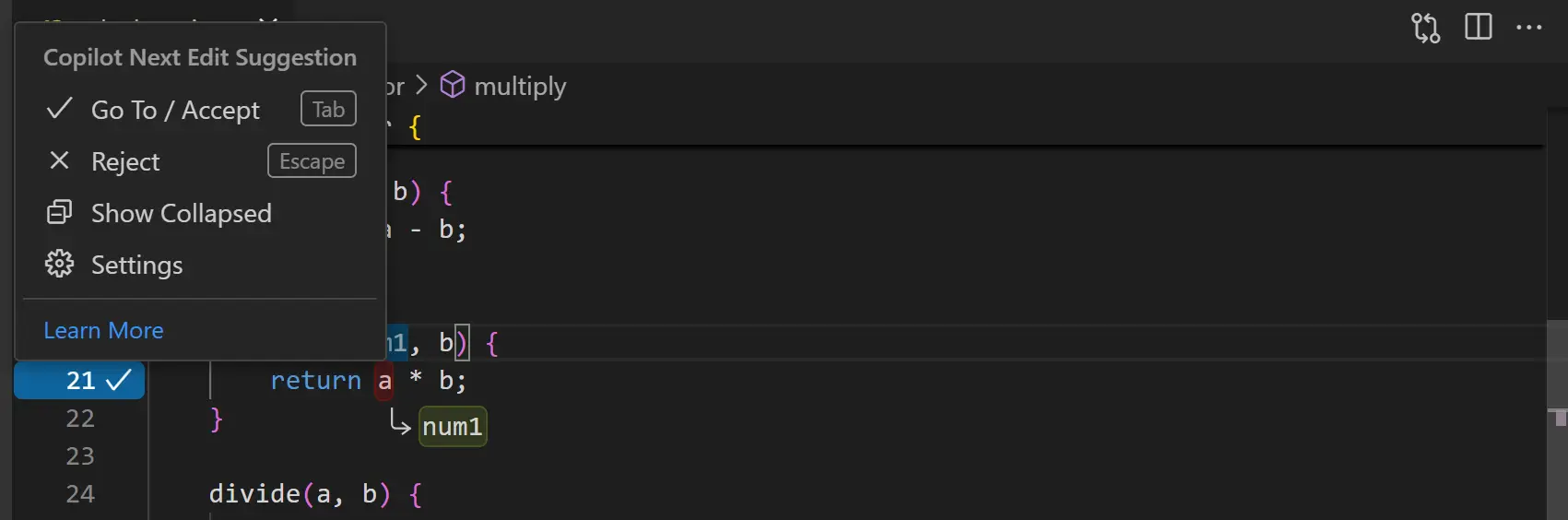
When Copilot generates a suggestion, you can accept it using Tab or Enter. Accepting suggestions is more than just inserting code. It’s a way to integrate AI-driven assistance directly into your coding rhythm. By accepting suggestions carefully, you can maintain consistent coding patterns, avoid manual errors, and significantly reduce typing time.
Additional Tips
- Evaluate the suggestion before accepting, especially in critical sections of code. Copilot is context-aware but not perfect, so oversight is key.
- Use partial acceptance by editing the suggested code; Copilot adapts to your modifications and improves subsequent suggestions.
- Combine Copilot with your own coding conventions to ensure consistency across your project.

Cycle Through Multiple Suggestions
One of Copilot’s most powerful features is offering multiple alternative suggestions for the same line or block of code. This enables developers to choose the solution that best matches the project requirements or their coding style. Cycling through alternatives encourages experimentation and can reveal approaches you might not have initially considered.
How to Use
- Use the provided keyboard shortcuts to scroll through suggestions.
- Compare multiple suggestions for efficiency, readability, and maintainability.
- Select or combine elements from different suggestions to produce optimal results.
Benefits
- Maintains developer control while leveraging AI insight.
- Reduces time spent brainstorming common code patterns.
- Encourages exploration of alternative logic or algorithms without trial-and-error coding.
Generate Functions, Docstrings, and Unit Tests
Beyond line-by-line suggestions, Copilot can generate entire functions, documentation, and tests based on your input. This elevates it from a simple code completion tool to a full-fledged coding partner.
Key Use Cases
-
Function generation: Write a comment describing the function, and Copilot can generate a full implementation that matches the intent.

-
Docstring creation: Automatically generate inline documentation that explains the purpose, parameters, and expected outputs of your code.
-
Unit test generation: Produce test scaffolding to validate your code, ensuring reliability and encouraging best practices like test-driven development (TDD).
Best Practices:
- Review generated functions and tests carefully; ensure they align with your project logic.
- Use generated documentation to maintain clarity across team projects.
- Combine multiple AI-generated snippets to save time while retaining control over code quality.
Optimize Your Workflow
To get the most out of Copilot, consider these additional strategies:
- Iterative prompts: Provide more detailed comments or partial code to guide the AI for better suggestions.

- Keyboard shortcuts mastery: Learn all Copilot shortcuts for accepting, cycling, or dismissing suggestions to keep your workflow smooth.
- Context management: Keep files organized and maintain clean code; Copilot’s performance improves when context is structured and unambiguous.
By combining these strategies with Copilot’s capabilities, developers can write code faster, more accurately, and with greater creativity. Copilot not only assists with repetitive tasks but also enhances problem-solving by suggesting innovative approaches and supporting exploratory coding.
Copilot Chat: From Code Assistant to AI Teammate
GitHub Copilot Chat represents the next evolution of AI-powered development, transforming Copilot from a simple code suggestion tool into a collaborative AI teammate. Instead of just completing lines of code, Copilot Chat understands your intent, answers your questions, and actively assists with refactoring, debugging, and exploring codebases.
This section explores how Copilot Chat enhances developer productivity, how to communicate with it naturally, and how to leverage powerful @workspace commands to interact with your entire project.
What Is Copilot Chat and How It Enhances Productivity
Copilot Chat is an interactive AI assistant integrated directly into Visual Studio Code. Unlike traditional chatbots or code completion tools, Copilot Chat operates in the context of your open project, meaning it understands your files, dependencies, functions, and even recent edits.
Developers can ask questions like:
- “What does this function do?”
- “Why am I getting this error?”
- “Can you refactor this for better performance?”
Because Copilot Chat is context-aware, it delivers accurate, relevant, and actionable responses based on your codebase rather than generic information.
How it improves productivity:
- Reduces context-switching between browser searches and code editor.
- Provides on-demand explanations, helping junior developers understand complex logic faster.
- Accelerates debugging and refactoring workflows by providing immediate, relevant feedback.
- Acts as a pair programmer, always available for instant collaboration.
Communicate Naturally: Explain, Refactor, and Debug Code
One of Copilot Chat’s most powerful capabilities is its ability to understand natural language. You can ask questions and give instructions as if you were talking to a teammate. There’s no need for specific syntax or commands.
Explaining Code
You can select a function or code snippet and ask,
“Explain what this code does.”
Copilot will then describe the purpose, logic, and flow in plain English, often breaking it down step-by-step.
This is especially useful for:
- Reviewing unfamiliar legacy code.
- Onboarding new team members.
- Quickly understanding open-source projects.
Refactoring Code
Copilot can rewrite or restructure code for better readability, performance, or maintainability. Simply type:
“Refactor this function to be more efficient.”
Copilot will suggest optimized alternatives, often explaining why the changes improve the code.
Debugging with AI Assistance
You can also ask Copilot to identify and resolve bugs. For instance:
“Why am I getting this TypeError?”
“Can you fix this loop logic?”
Copilot analyzes the error message, inspects related code, and offers targeted debugging advice, often suggesting fixes that can be applied instantly.
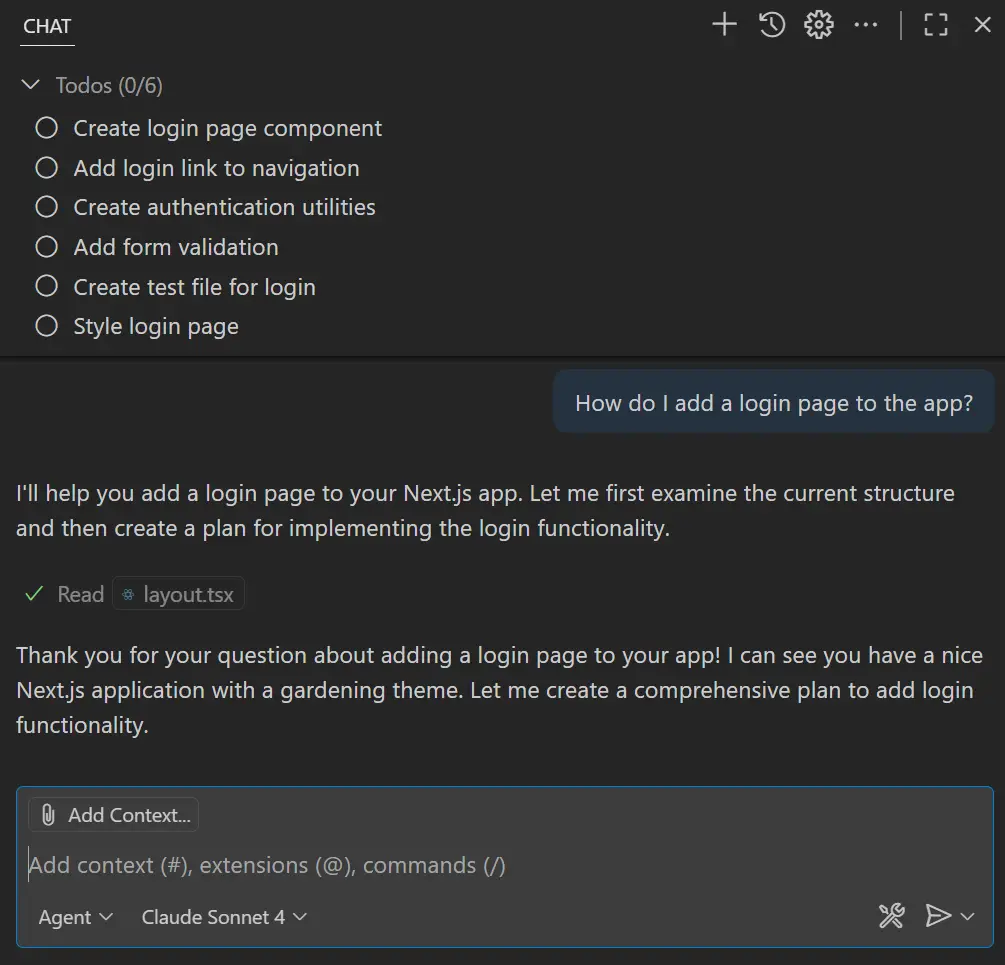
Using @workspace Commands: Search and Analyze Across Your Project
The real magic of Copilot Chat lies in its @workspace commands, which extend its capabilities beyond individual files. These commands allow you to perform deep project-wide analysis using natural language.
Some examples include:
@workspace find function getUserData→ Searches your entire workspace for where a function is defined or called.@workspace explain file auth.js→ Provides a detailed explanation of the selected file.@workspace fix test errors→ Analyzes test failures across multiple files and suggests potential fixes.@workspace summarize→ Creates summaries of large codebases, ideal for documentation or quick onboarding.
This functionality allows developers to navigate, audit, and understand large projects faster than ever, without needing to manually search through multiple files or lines of code.
Turning Collaboration Into a Conversation
Copilot Chat doesn’t just answer questions. It enables a two-way conversation between developer and AI. Each response can lead to follow-up questions, clarifications, or code edits. You can ask “Can you simplify it further?” or “Show me an alternative using async/await”, and Copilot adapts dynamically.
This makes it more than a coding tool. It becomes an AI teammate that helps you think, learn, and iterate faster.
Learning and Personalization
GitHub Copilot is far more than a simple autocomplete tool; it acts as an AI partner that adapts to your personal coding style and continuously personalizes its suggestions. As you write code, Copilot observes your habits, such as how you name variables and functions, the libraries and frameworks you frequently use, and your preferred code structure. By learning these patterns, it can provide suggestions that feel natural and consistent with your style, reducing the need for manual corrections. This personalization is especially valuable for developers working across multiple projects or managing large codebases, ensuring that the AI’s recommendations always align with your coding conventions.
Copilot’s capabilities extend beyond understanding individual preferences. It is also context-aware within your active project. It considers the file you’re working on, surrounding code, function and class definitions elsewhere in the project, as well as comments and documentation. This contextual awareness enables Copilot to generate highly relevant suggestions whether you are adding a new feature, refactoring existing code, or debugging. By tailoring its recommendations to the logic, style, and scope of your project, Copilot helps speed up development while reducing the risk of errors.
Moreover, Copilot is continuously improved through updates from GitHub and OpenAI. These updates enhance the accuracy of suggestions, expand support for additional languages and frameworks, and improve the AI’s ability to handle complex code patterns. Users automatically benefit from these improvements, meaning Copilot evolves alongside the broader developer community and the latest AI innovations, without requiring manual intervention. This ensures that the suggestions remain reliable, efficient, and up to date.
In summary, Copilot’s learning and personalization capabilities enable faster development cycles, higher code quality, and a consistent project structure. By understanding both your coding habits and the specific context of your project, Copilot functions as more than just a tool. It becomes a dynamic AI teammate that grows and evolves alongside you.
Security, Privacy, and Code Ownership
GitHub Copilot is designed to provide developers with a powerful AI coding assistant without compromising security or privacy. While it leverages cloud-based AI models for code generation, Copilot handles all user data according to strict security protocols. When you write code in VS Code, only the minimum necessary context is sent to the AI models to generate suggestions, and this data is anonymized to prevent exposure of sensitive project information. Users maintain full control over what is shared, and no proprietary code is stored beyond the processing scope. This ensures that both individual developers and teams can rely on Copilot without worrying about data leaks or unauthorized access.
Beyond data security, Copilot also addresses open-source code licensing and intellectual property concerns. The AI has been trained on publicly available code, but it does not directly replicate copyrighted content. Instead, it generates novel code snippets inspired by learned patterns, reducing the risk of license conflicts. GitHub provides clear guidance on how to use Copilot-generated code responsibly, helping developers ensure that their projects remain compliant with licensing requirements. This makes Copilot suitable not only for personal projects but also for professional and commercial environments where compliance is critical.
For organizations, Copilot for Business adds an extra layer of security, privacy, and governance. Enterprise administrators can control who uses Copilot, monitor usage across teams, and implement compliance policies tailored to company requirements. Additional features include restricted API access, logging for auditing purposes, and integration with internal security systems. These measures make Copilot a safe and scalable solution for enterprises seeking to adopt AI-assisted development without compromising organizational standards or sensitive codebases.
Pricing Plans and Student Access
GitHub Copilot offers a variety of pricing plans designed to meet the needs of individual developers, teams, and large organizations. The personal plan provides individual developers full access to Copilot’s features in VS Code, including AI-assisted code suggestions, natural language explanations, and automated test generation. For teams and enterprises, business and enterprise plans provide enhanced administrative controls, compliance features, and collaboration tools, allowing organizations to manage AI usage across multiple users while maintaining security and governance standards. These plans are ideal for companies seeking to scale AI-assisted development safely and efficiently.
Recognizing the importance of education and open-source contributions, GitHub also provides free access to students and verified open-source developers. Through the official GitHub Student Pack, learners can gain full Copilot access along with other valuable development tools. This initiative ensures that students can explore AI-assisted coding, experiment with real-world projects, and learn professional coding practices without financial barriers. By providing free access, GitHub fosters a new generation of developers who are familiar with AI-powered development tools from the outset of their careers.
Additionally, free access for students and open-source contributors promotes equitable learning opportunities. Students can practice coding with real-time suggestions, explore advanced coding patterns, and understand best practices, all within a safe and fully supported environment. Open-source developers benefit similarly, as Copilot can accelerate feature development, assist in maintaining code quality, and reduce repetitive tasks, allowing them to focus on creative problem-solving and collaboration.
Best Practices and Use Cases
GitHub Copilot has quickly become an indispensable tool for developers by offering real-time, context-aware suggestions that improve efficiency, consistency, and code quality. On a daily basis, developers use Copilot to speed up repetitive coding tasks, generate boilerplate code, and explore new patterns or frameworks without leaving the editor. By leveraging natural language prompts, they can ask Copilot to explain existing code, suggest improvements, or even generate fully functional functions and unit tests.
In team environments, Copilot Chat enhances collaboration by acting as an AI-powered partner that can clarify code, propose refactoring strategies, and answer questions from multiple developers simultaneously. Teams can reduce miscommunication and align coding practices by using Copilot to maintain consistent styles and quickly onboard new team members. This makes it particularly valuable in large-scale projects where multiple developers contribute to complex codebases.
For larger projects, Copilot helps maintain high code quality and productivity. It assists in enforcing coding standards, reducing errors, and providing context-aware suggestions across files and modules. By automating mundane or repetitive tasks, developers can focus on solving critical logic problems and designing scalable solutions. Use cases span from web development and API design to data science, DevOps scripts, and automated testing. When used effectively, Copilot becomes a reliable teammate, continuously learning from project patterns while helping teams deliver better code faster.
Conclusion: Transform the Way You Code
GitHub Copilot represents a milestone in AI-assisted programming, fundamentally changing how developers write, understand, and maintain code. By integrating seamlessly with VS Code, Copilot transforms coding from a purely manual task into a collaborative process with an AI-powered assistant. It accelerates development, ensures consistency, and provides real-time guidance that is particularly valuable for both individual developers and teams.
For anyone looking to enhance productivity, improve code quality, and explore the potential of AI-driven development, now is the perfect time to adopt Copilot. Whether you are a student, open-source contributor, or part of a large enterprise team, Copilot offers practical benefits that make coding smarter, faster, and more efficient.
“Try GitHub Copilot in Visual Studio Code today” Download Visual Studio Code
New to the platform itself? Start with what GitHub is and what it is used for. Weighing Copilot against the alternative? Cursor vs VS Code with GitHub Copilot puts the two side by side.
“Writing is seeing the future.” Paul Valéry