
Table of Contents
Share
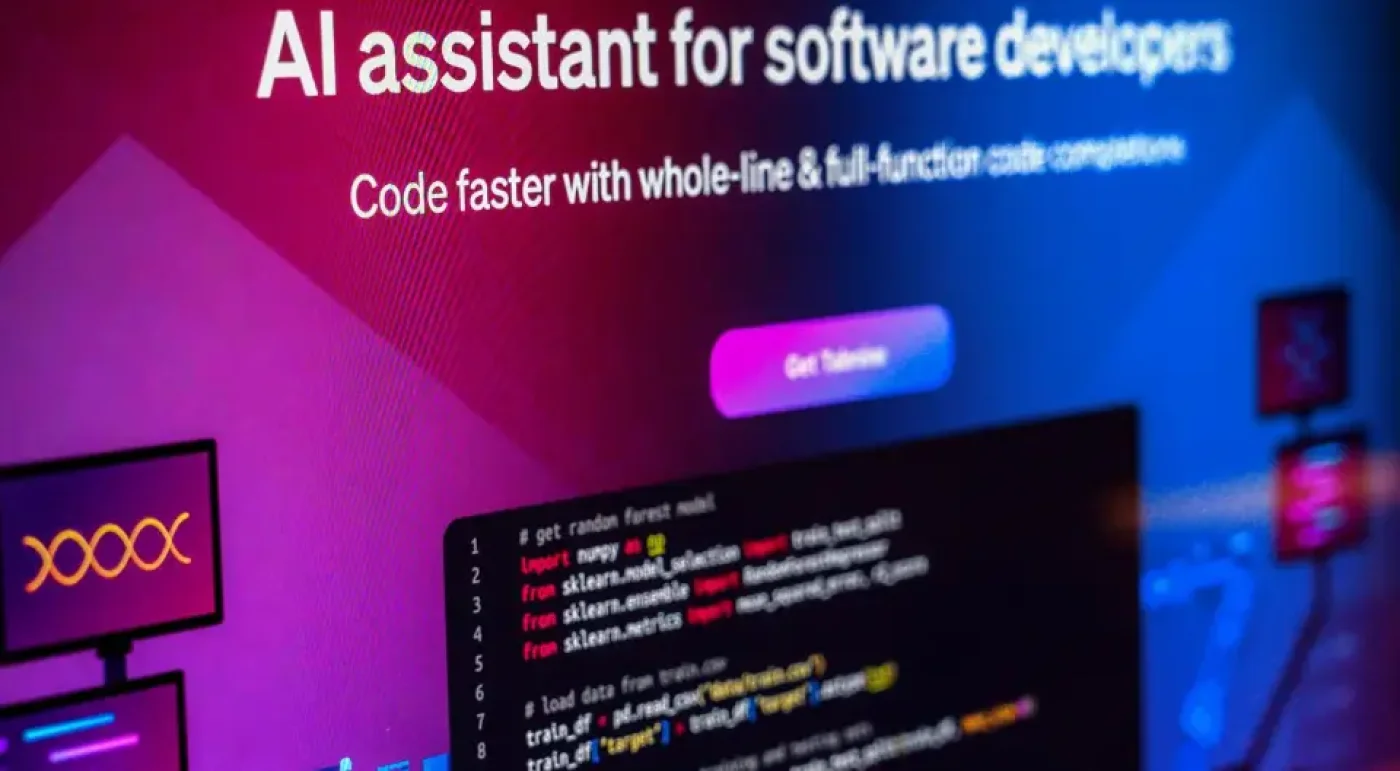
In recent years, codin workflows have been dramatically transformed by AI-powered tools, and Cursor AI stands at the forefront of this revolution. Integrated seamlessly with Visual Studio Code, one of the most popular code editors among developers, Cursor AI enhances the coding experience by providing intelligent, context-aware suggestions in real time. Unlike traditional code editors, where developers manually write, test, and debug every line, Cursor AI leverages advanced artificial intelligence to anticipate what the developer intends to write next, making the coding process faster and more accurate.
The benefits of using Cursor AI in VS Code are numerous. It offers AI-powered code suggestions, enabling developers to autocomplete functions, classes, or even entire scripts with a single prompt. Natural language editing allows developers to interact with code conversationally, asking the AI to refactor, explain, or generate code without leaving the editor. Multi-file updates and project-wide editing capabilities reduce repetitive tasks, particularly in large projects where changes often span multiple files. By automating routine coding work, Cursor AI allows developers to focus on complex logic, creative problem-solving, and optimizing software performance.
In modern development workflows, where speed, efficiency, and accuracy are paramount, Cursor AI fits seamlessly. Whether you are a solo developer building a personal project or part of a larger team working on enterprise-grade software, Cursor AI integrates smoothly into existing VS Code setups. Its AI-powered recommendations help maintain coding consistency across files and modules, making it an invaluable assistant in both individual and collaborative environments.
What is a Cursor and Cursor AI?
Before diving into the specifics of Cursor AI, it is important to understand the concept of a computer cursor and its evolution. A cursor is the graphical representation of the user’s position in a computing environment, often displayed as a blinking vertical line in text editors or a pointer icon on graphical interfaces. Since the early days of computing, cursors have evolved from simple block indicators to sophisticated graphical pointers, adapting to the needs of both mouse and touch-based input.
There are several types of cursors, each serving a distinct purpose. The mouse cursor is the most commonly recognized, representing the pointer controlled by a physical or wireless mouse. Touchpad cursors operate similarly but are optimized for precision on laptop trackpads. Some users experience invisible or disappearing cursors, which can occur due to hardware or software issues, while others customize cursor size, speed, and appearance for better visibility. Additional cursor forms, such as blinking text cursors or pointer shapes, convey different types of interaction, signaling where typing or selection will occur.
Cursor AI extends the traditional concept of a cursor into the realm of intelligent coding assistance. Rather than merely indicating a position on the screen, Cursor AI actively analyzes the surrounding code, interprets developer intent, and provides context-aware suggestions that span lines, functions, and even multiple files. This AI-driven approach transforms the cursor from a passive navigational tool into an active coding partner, capable of improving productivity, reducing errors, and streamlining complex coding workflows. By combining historical cursor functionality with modern AI capabilities, Cursor AI bridges the gap between human intuition and computational efficiency.
Why Use Cursor AI in VS Code?
Integrating Cursor AI with Visual Studio Code is a game-changer for developers, combining the flexibility and extensibility of VS Code with the intelligence of AI-assisted coding. While VS Code is already a highly customizable editor supporting a multitude of programming languages, extensions, and debugging tools, Cursor AI introduces a new dimension of productivity and code quality that traditional coding environments cannot match.
Key Features of Cursor AI
Cursor AI offers several advanced features that elevate the coding experience:
-
AI-driven code suggestions: Cursor AI analyzes your current file, project context, and coding patterns to provide highly relevant, context-aware code completions. Unlike standard autocompletion tools, it can generate entire functions, classes, or even repetitive boilerplate code. For instance, when writing a Python class, Cursor AI can propose method implementations that follow your existing naming conventions and coding style.
-
Project generation and scaffolding: One of the most powerful capabilities is its ability to generate multi-file projects from a single prompt. Instead of manually creating directories and setting up boilerplate, developers can instruct Cursor AI to scaffold a full project structure for web development, APIs, or even data science pipelines, saving significant time in initial project setup.
-
Context-aware editing: Cursor AI doesn’t just look at the current line of code; it considers entire files, imports, and dependencies across your project. This ensures that suggestions are consistent with your project’s architecture, helping maintain a clean and uniform codebase.
-
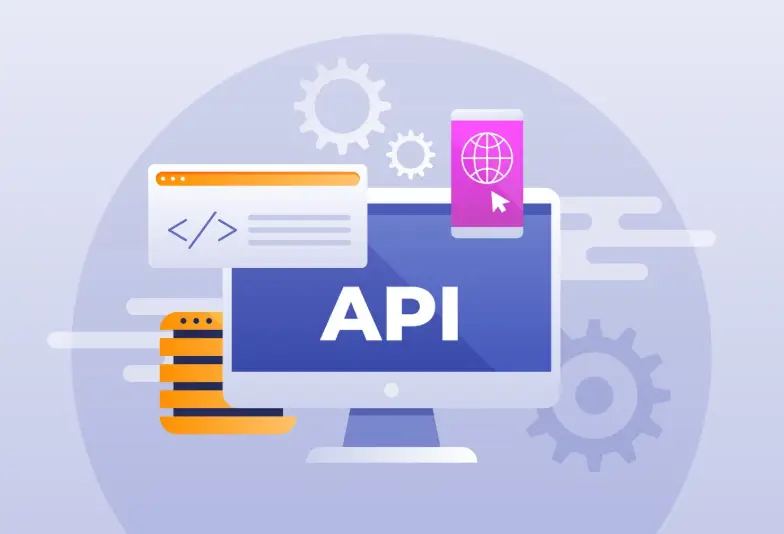
Custom API integration: For advanced users or teams, Cursor AI can integrate with proprietary APIs or internal libraries. This allows developers to extend the AI’s understanding of specialized workflows, making it suitable for enterprise environments or custom application domains.
Practical Benefits of Using Cursor AI
The combination of VS Code and Cursor AI translates into measurable advantages in everyday development:
-
Faster coding: Automates repetitive and boilerplate code generation, reducing the number of keystrokes required to implement features.
-
Reduced errors: AI-generated suggestions often follow best practices and are syntactically correct, helping to minimize common mistakes like missing semicolons, misnamed variables, or incorrect function calls.
-
Enhanced focus on complex logic: By taking over repetitive tasks, Cursor AI allows developers to dedicate more time to problem-solving, algorithm design, and optimizing code efficiency.
-
Consistency across teams: In collaborative projects, Cursor AI can help enforce consistent coding standards, ensuring that multiple contributors maintain uniform code structure and style.
-
Learning and guidance: For beginners, Cursor AI acts as a real-time tutor. It can suggest coding patterns, explain logic, or even offer hints about library functions, helping developers learn new languages or frameworks faster.
Real-World Applications
-
Web development: Cursor AI can automatically generate HTML, CSS, or JavaScript boilerplate, while suggesting responsive design patterns.
-
Python projects: From class definitions to unit tests, Cursor AI streamlines repetitive scripting tasks.
-
Enterprise software: Multi-module projects benefit from context-aware suggestions across files, reducing the time spent on integration and debugging.
Setting Up Cursor AI in Visual Studio Code
Getting started with Cursor AI is straightforward, but proper setup ensures a seamless and productive experience.
Prerequisites
Before installation, ensure the following:
- Visual Studio Code installation: Download and install the latest version from the official site.
- Internet connection: Required for AI-powered suggestions and cloud processing.
- Basic familiarity with VS Code: Knowing how to navigate the editor, install extensions, and manage files will make setup easier.
Install the CodeCursor Extension
-
Open VS Code and navigate to the Extensions Marketplace.
-
Search for “CodeCursor” and click Install.
-
The extension integrates Cursor AI into your editor, enabling real-time code suggestions, project scaffolding, and AI-assisted multi-file edits.
-
After installation, you may see a welcome or tutorial prompt. Following it can help you quickly learn the interface.
Configure Authentication
You need to authenticate your Cursor AI account. Use either a Cursor account login or an OpenAI API key.
This ensures secure communication between VS Code and the AI backend while unlocking features like chat, advanced code generation, and project-wide suggestions.
For teams, using an organizational API key allows administrators to manage multiple users effectively.
Verify Setup
-
Open a test project or create a simple file. Enter a code snippet relevant to your development language.
-
Cursor AI should provide:
Real-time suggestions for code completion
Refactoring recommendations
Function or class generation options
Testing at this stage ensures that AI features are fully operational and that your environment is ready for daily coding tasks.
Tips for a Smooth Setup
Keep VS Code updated: Some features may require the latest versions of VS Code.
Install supporting extensions: Depending on your language, extensions like Python, Live Server, or HTML Preview can enhance Cursor AI’s performance.
Enable cloud sync (optional): This allows your settings and AI configurations to remain consistent across multiple devices.
Using Cursor AI: Step-by-Step
Using Cursor AI in Visual Studio Code is designed to be intuitive, but mastering its capabilities can dramatically enhance coding productivity. Developers can leverage Cursor AI in several key ways, each of which streamlines workflow and reduces repetitive tasks.
Code Generation
Cursor AI can generate code directly from prompts written in natural language. For example, you can instruct the AI to create a function, class, or utility without manually typing every line. By analyzing surrounding files and project context, Cursor AI produces suggestions that follow consistent naming conventions and adhere to best practices. This feature is particularly useful for boilerplate code, repetitive patterns, or when exploring new libraries and frameworks.

Code Editing and Refactoring
Beyond code generation, Cursor AI assists with editing and refactoring existing code. Developers can ask the AI to optimize loops, simplify conditionals, or even rewrite sections for readability and performance. By interacting with your code conversationally, you can perform tasks that traditionally required manual effort, such as renaming variables consistently across multiple files or converting legacy functions to modern standards.
Project Scaffolding
One of Cursor AI’s standout capabilities is project scaffolding. Instead of manually creating folders and files, you can prompt the AI to generate multi-file projects for web apps, APIs, or scripts. This is ideal for rapid prototyping or initializing complex projects, and it ensures a consistent file structure and coding style across all components.
Tips for Maximizing AI Suggestions
To get the most from Cursor AI, consider these strategies:
Provide context: Include relevant code snippets or comments so the AI understands your intentions.
Leverage open files: Cursor AI can use multiple open files to generate more accurate, context-aware suggestions.
Iterate on suggestions: Cycle through alternative suggestions to select the best implementation for your project.
Use natural language prompts: Clear instructions yield better results than vague commands.
Key Features of Cursor AI in VS Code
Cursor AI is more than just an autocomplete tool; it transforms the way developers interact with code, providing a suite of powerful features designed for productivity, learning, and project management.
AI-Powered Code Completion
Cursor AI predicts the next lines of code based on your current context, offering real-time suggestions that reduce typing time and improve accuracy. Unlike traditional autocompletion, it can handle entire code blocks, method implementations, or repetitive patterns efficiently.
Chat with Your Code
The chat interface allows developers to communicate with their code in natural language. You can request explanations for complex functions, debug errors, or optimize logic without leaving the editor. This feature essentially acts as a coding assistant embedded within VS Code, providing real-time guidance and enhancing learning for both beginners and experienced developers.
Multi-File Project Edits and Generation
Cursor AI can edit multiple files simultaneously, enabling large-scale refactoring or consistent changes across projects. This capability is crucial for enterprise-level projects where maintaining uniformity in naming conventions, function definitions, and documentation is critical. Additionally, it can generate entire project structures from prompts, significantly accelerating development setup and prototyping.
Custom Model/API Integration
For advanced users or teams, Cursor AI supports custom models and API integration. This allows you to tailor AI suggestions to your own codebase, internal libraries, or specialized workflows. Such flexibility ensures that Cursor AI is not only useful for standard development but also for custom enterprise environments.
Cursor Customization and VS Code Settings
Visual Studio Code provides a highly flexible and customizable development environment, allowing developers to adapt the editor to their personal workflow preferences. One of the key aspects of this customization is the cursor, which serves as the primary point of interaction in the editor.
Cursor AI enhances this experience by integrating seamlessly with VS Code’s cursor settings, ensuring that AI-driven suggestions, multi-line edits, and context-aware code generation remain clear and accessible regardless of how you configure your workspace. A well-configured cursor can reduce eye strain, improve focus, and enhance productivity, especially when working on large projects or multi-file edits.
Adjusting Cursor Appearance
VS Code allows developers to fine-tune the cursor’s size, style, and visibility, which directly impacts how easily you can track code changes, especially when AI suggestions are appearing in real time:
Cursor size: Increasing the cursor’s size makes it easier to follow in dense or complex code files. This is particularly helpful for developers working with high-resolution monitors or multiple monitors, where small cursors can be difficult to track.
Cursor style: VS Code offers multiple styles, including block, line, or underline. A block cursor may be preferable for text-heavy coding, while a line cursor allows for precise insertion points. Choosing the right style depends on your typing habits and the type of coding you do.
Blinking behavior: Adjusting the blink rate can minimize distraction or prevent eye fatigue during long coding sessions. Some developers prefer a steady, non-blinking cursor for extended periods of focus, while others benefit from a subtle blink to locate the insertion point quickly.
VS Code Themes and Cursor AI
Themes in VS Code do more than just beautify your editor. They directly affect cursor visibility and AI suggestion clarity.
Dark themes: While visually appealing, dark themes may cause cursors to blend into the background. Developers often compensate by selecting high-contrast cursor colors or enabling additional visual cues from Cursor AI to ensure suggestions remain noticeable.
Light themes: On lighter backgrounds, the cursor should be subtle but still distinct enough to stand out from the surrounding text. Some developers choose slightly thicker or colored cursors to improve tracking during AI-assisted code generation.
AI suggestions compatibility: Cursor AI adapts to the theme settings, ensuring that real-time code completions, refactoring prompts, and multi-line edits remain readable regardless of theme choice. This consistency allows developers to focus on coding rather than adjusting visual settings during work.
Custom Keybindings, Shortcuts, and Extensions
Optimizing workflow is not just about how the cursor looks. It’s also about how efficiently you can interact with Cursor AI. VS Code allows you to assign custom keybindings and shortcuts for various AI-related actions:
Cycling through alternative AI suggestions: Quickly switch between different code completions without interrupting your typing flow.
Activating AI-powered code chat: Engage in natural language interactions with Cursor AI to explain code, suggest improvements, or debug errors.
Triggering project scaffolding prompts: Generate multi-file projects with a single shortcut, saving setup time for new projects.
In addition to custom keybindings, extensions such as Live Server, HTML Preview, or Python support can complement Cursor AI, creating a fully optimized and highly efficient development environment. For example:
- Live Server: Provides real-time previews of web projects while AI helps generate HTML, CSS, or JavaScript updates.
- HTML Preview: Works alongside Cursor AI to display AI-suggested changes in static or dynamic web content.
- Python Support: Allows AI to auto-generate classes, functions, and tests while offering refactoring suggestions and syntax optimizations.
By combining cursor customization, themes, keybindings, and extensions, developers can create a workspace where Cursor AI suggestions are visually prominent, easily accessible, and integrated smoothly into their coding workflow. This approach not only enhances productivity but also reduces errors, improves code readability, and makes multi-file project management significantly more efficient.
Troubleshooting and Tips
Even experienced developers can encounter cursor-related issues while coding in Visual Studio Code. These issues, while often minor, can disrupt workflow and make even simple coding tasks frustrating. Understanding common problems and their solutions is essential to maintaining a smooth development experience, especially when using AI tools like Cursor AI that rely on clear, visible cursors.
Common Issues and Fixes
Disappearing cursor: A disappearing cursor is usually caused by hardware acceleration conflicts, incompatible extensions, or specific VS Code rendering settings. To resolve this, try disabling unnecessary extensions, updating VS Code to the latest version, or modifying the rendering options in the settings. Restarting the editor often fixes temporary glitches.
Invisible cursor: On high-resolution displays or customized themes, the cursor can become difficult to see. Adjust the cursor size, change its color, or select a high-contrast theme to enhance visibility. Some users also enable animated cursors or visual indicators to make the cursor easier to track.
Blinking cursor confusion: If the cursor blinks too quickly or too slowly, it can be distracting. Adjust the cursor blink rate in VS Code settings to suit your focus and reduce eye strain, especially during long coding sessions.
Enhancing Cursor Visibility
Maximizing cursor visibility is crucial, particularly when working with AI-assisted tools like Cursor AI that highlight code suggestions:
Cursor download sites: Developers often use custom or animated cursors from trusted sources to improve visibility and tracking. These can help differentiate the cursor from highlighted code or overlapping elements.
Installing animated cursors: Animated cursors provide visual feedback while typing or navigating, which can be particularly helpful when refactoring large code blocks or monitoring multi-file edits.
Adjusting cursor speed and precision: For touchpads or external mice, adjusting the system-level pointer speed or VS Code-specific cursor settings ensures smoother navigation and better alignment with AI-generated suggestions.
Best Practices for a Smooth Workflow
To avoid common cursor and visibility issues, adopt the following strategies:
Keep VS Code and extensions updated: Frequent updates resolve known bugs and improve compatibility with AI tools like Cursor AI.
Test AI features in sample projects: Before applying AI suggestions to critical code, experiment in a test file or sandbox project to identify potential visual or functional glitches.
Leverage settings sync: Use VS Code’s Settings Sync feature to maintain consistent cursor behavior, themes, and keybindings across multiple machines.
Backup workspace layouts: Regularly saving workspace layouts prevents accidental loss of cursor and panel configurations.
By proactively addressing these issues, developers can maintain a seamless coding experience while fully benefiting from Cursor AI’s capabilities.
Advanced VS Code + Cursor AI Usage
Once you have mastered the basics, Cursor AI can be leveraged for more advanced workflows, enabling developers to write smarter, faster, and more maintainable code. By combining Cursor AI with VS Code’s powerful features, coding becomes not just efficient but also highly collaborative and adaptable to diverse projects.
Multi-Language Workflows
Cursor AI is designed to work across multiple programming languages, making it suitable for a wide range of applications:
Python: Generate entire classes, functions, or unit tests automatically. Refactor scripts, optimize loops, and scaffold complex data pipelines, saving hours of repetitive work.
JavaScript and TypeScript: AI-assisted suggestions can handle frontend and backend logic, API integration, and framework-specific patterns, reducing boilerplate and increasing consistency.

Web Development: Cursor AI generates HTML, CSS, and JavaScript snippets intelligently, while offering suggestions for responsive design, layout improvements, and dynamic content handling.
By supporting multiple languages and frameworks, Cursor AI allows developers to switch contexts effortlessly without losing workflow efficiency.
Workflow Enhancements
Integrating Cursor AI with other VS Code features creates a fully optimized development environment:
Markdown previews: Generate documentation, inline comments, and README files with AI assistance. This ensures consistent formatting and helps maintain project documentation alongside code.
Live Server integration: Preview web pages in real time while Cursor AI suggests updates to HTML, CSS, or JavaScript. This is especially useful for rapid prototyping and testing UI changes instantly.
Git usage: Cursor AI can suggest commit messages, identify potential merge conflicts, or refactor code before commits, improving code quality and team collaboration.
Team Collaboration and Sync
For teams or developers working across multiple devices, Cursor AI enhances collaboration:
Syncing settings: Maintain consistent Cursor AI preferences, VS Code themes, and keybindings on different machines. This ensures that AI suggestions and cursor behavior remain familiar, whether working remotely or in the office.
Collaborative coding: Standardized AI-assisted code suggestions help teams maintain uniform coding styles, reduce errors, and accelerate project timelines. By integrating Cursor AI into the workflow, teams can achieve greater consistency and productivity across multiple developers and repositories.
Version control integration: AI suggestions complement Git workflows, assisting with code reviews, refactoring, and multi-branch consistency.
By combining advanced Cursor AI usage with VS Code’s extensibility, developers gain a powerful, intelligent coding assistant that not only boosts individual productivity but also improves overall team efficiency.
Conclusion
Cursor AI represents a significant advancement in AI-assisted programming, seamlessly blending with Visual Studio Code to create an environment that is smarter, faster, and more efficient. Its combination of context-aware code suggestions, project scaffolding, multi-file editing, and natural language interaction makes it an invaluable tool for developers of all levels.
By integrating Cursor AI into your workflow, you can:
- Increase coding speed by automating repetitive tasks.
- Reduce errors with intelligent, context-aware suggestions.
- Focus on complex problem-solving while letting AI handle boilerplate or routine code.
- Maintain consistency across projects and teams, improving collaboration and code quality.
Whether you are a beginner exploring Python, a web developer managing front-end frameworks, or part of a large development team, Cursor AI transforms the way you interact with code, turning VS Code into a truly intelligent development environment.
Download Visual Studio Code, install Cursor AI and start writing faster, smarter, more productive code today.
This way, you can start using AI-powered coding immediately and enhance your productivity, collaboration, and code quality.
“Writing is seeing the future.” Paul Valéry